
Connect to the same network
Connect the TV and computer to the same local network. Find the TV's IP address in its network settings.
Android TV · Open source
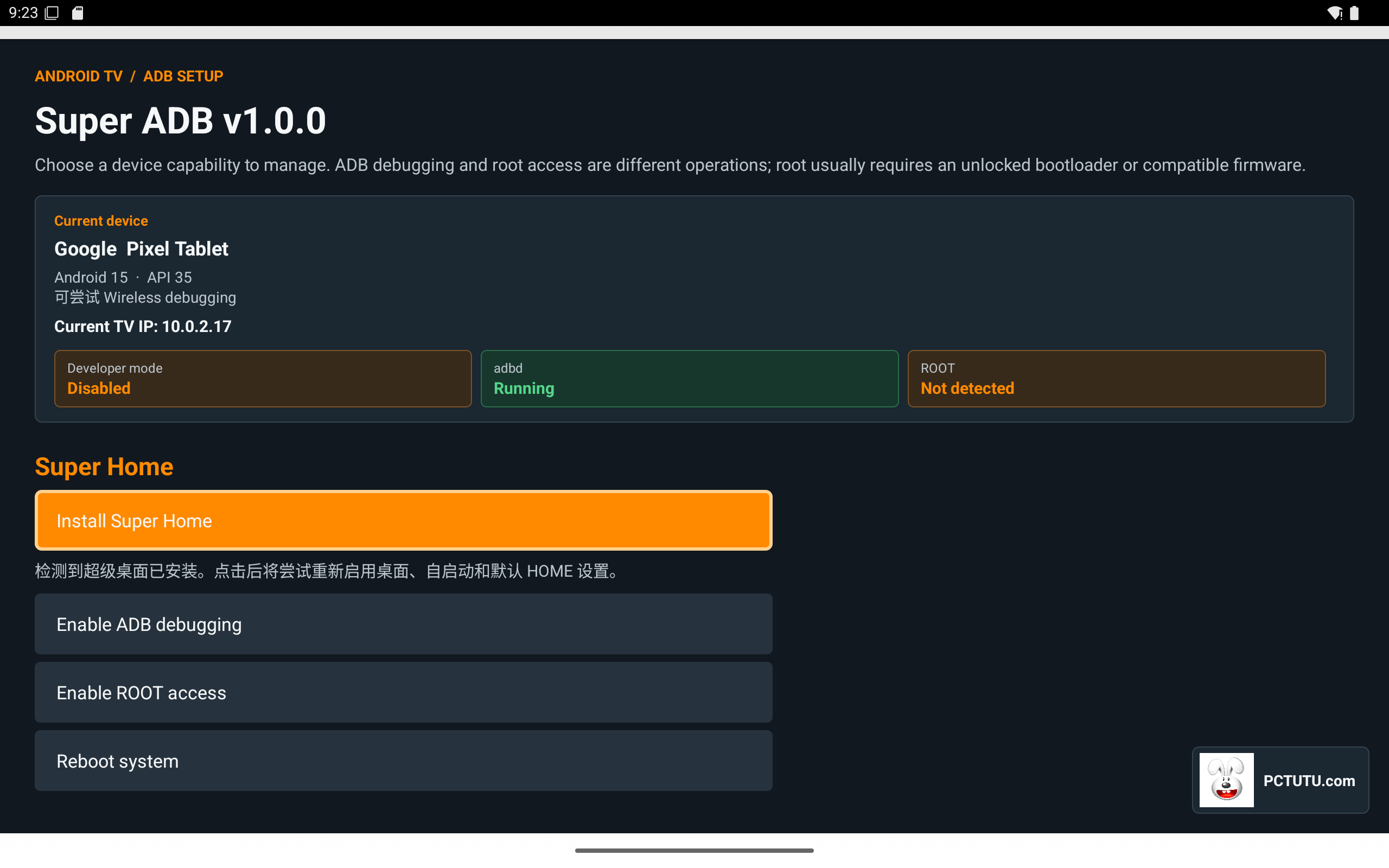
A TV-side debugging companion. Enable debugging on the TV, then connect from a computer with ADB to inspect device information, manage apps, and deploy a launcher.
This project is open source. Debugging support depends on the TV brand, Android version, and vendor permission policies.
Connection workflow
The TV enables the debugging endpoint; the computer establishes the ADB session and performs management tasks.
Connect the TV and computer to the same local network. Find the TV's IP address in its network settings.
Install and open Super ADB, then follow its instructions to enable Developer options and ADB debugging. Approve any authorization prompt on the TV.
In Super Optimizer's Android tools, select or enter the TV's IP address. Use the port shown by the TV or configured by the system; 5555 is a common TCP ADB port.
Connect and check the device status. A status of device means ADB is authorized and ready; return to the TV to approve it if the status is unauthorized.
After connecting, inspect device information, install or uninstall apps, launch apps, or install and check SuperHome. Device responses determine each operation's result.
Computer-side tools
ADB does not provide root access. Disabling critical system apps or rebooting may affect the device, and system restrictions or vendor checks may block operations.
Find source code, downloads, and instructions in the open-source repository.