One-to-one file transfer guide

Private file transfer:
Connect directly without adding contacts

Create a temporary connection in Piaoye Docs on your phone, computer, or tablet. On your other device or someone else's, open a browser and enter the 16-digit code to join this private transfer.

16digits

One connection, one temporary code
No contact list, recipient sign-in, or Piaoye Docs installation is required on the receiving device.

File transfer interface in Piaoye Docs
1 to 1Transfer through a temporary connection
Three steps

Create a code on one device. Enter it on another.

The code is only for this temporary transfer. Recipients do not need to become contacts or install software in advance.

01

Create a member connection on the sending device

Open Transfer in Piaoye Docs on your phone, computer, or tablet. Sign in as a member and select Create member connection. The page publishes temporary connection addresses currently reachable on that device.

02

Share the 16-digit connection code

Note the 16-digit code. Enter it on your other device or share it in person. There is no need to add contacts or create an ongoing account relationship.

03

Join in a browser and start transferring

On the receiving device, open t.acn.cn, then enter the code. The page checks reachable addresses and opens the temporary transfer page hosted by the sending device.

Installation boundary

Install Piaoye Docs on the sender. Use a browser on the receiver.

The device running Piaoye Docs creates the transfer. Recipients open the connection page in a modern browser, without installing the same app across operating systems.

Transfers depend on browser support, the network, and the sending device staying online. Codes are temporary and must be recreated after expiry.

Your own devices

Move files between phones, computers, and tablets: create a code on one and join in a browser on another.

Someone else's device

For in-person transfers, share the temporary code. Recipients need not add contacts, register, or install Piaoye Docs.

Receiving platforms

Devices with a modern browser can receive files, including Android, iPhone/iPad, Windows, macOS, and Linux.

Sending device

The sender must have Piaoye Docs installed and signed in to create and maintain the temporary connection.

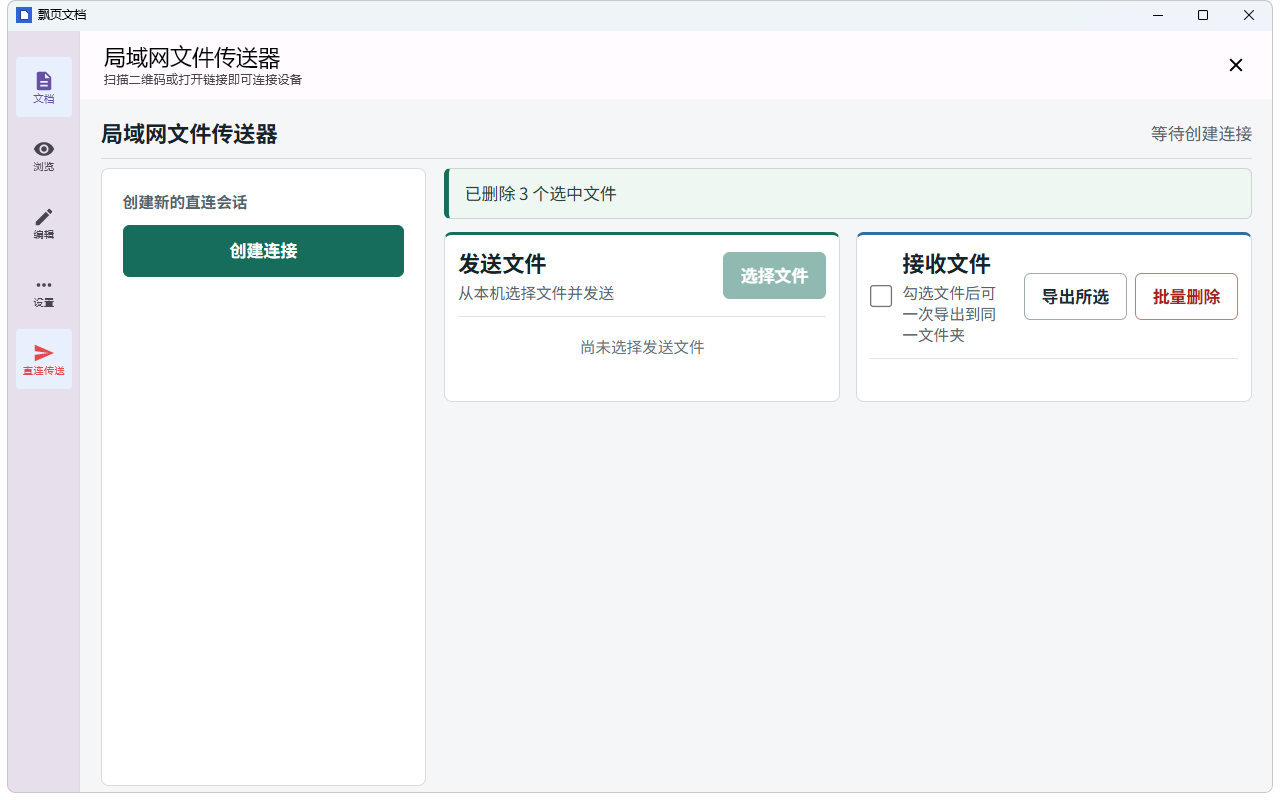
Sending a file to another device should not require adding someone as a contact first.
PCTUTU's perspective on private, in-person file transfers
Use cases

Move files between your devices or share them in person.

This workflow supports temporary, one-to-one device connections and in-person transfers rather than public cloud storage or group folders.

01

Phone to your computer

Use a temporary code to send PDFs, photos, attachments, or documents from your phone directly to your computer's browser.

02

Tablet and phone

Create a connection on your tablet and join from your phone to continue organizing received or captured files on a larger screen.

03

Share in person

If someone cannot scan a QR code or does not want to install an app, they can enter the code in a browser to join the transfer.

Network scope

Use a local network, or download remotely with reachable IPv6.

On the same Wi-Fi or local network, receivers usually access the sender through a local IPv4 or IPv6 address. Remote access to the temporary download page is also possible if the sender has a publicly reachable IPv6 address and the network, firewall, and browser permit it.

Remote IPv6 access requires actual public reachability and is not guaranteed on every network. Carrier-grade IPv4 NAT, router firewalls, and restricted networks may block external access.

Local IPv4

The usual first choice for nearby transfers at home, in an office, or on the same hotspot.

Local IPv6

On a dual-stack local network, the connection page obtains IPv4 and IPv6 addresses and checks reachability.

Public IPv6

Remote downloads across networks are possible when the sender has public IPv6 with inbound access allowed and the receiver has working IPv6.

Connection protection

Codes are short-lived. Close the transfer when finished or let the connection expire to stop exposing your device's address.

Download Piaoye Docs and try direct file transfer

Create a member connection in Piaoye Docs, then join the private transfer in a browser on another device.

Get the app